
Settings App
BourtinaUpPersonalization
3.4392.00 Reviews
- Version
- 4.0
- Installs
- 1.00M
- Age Rating
- Everyone
Screenshots
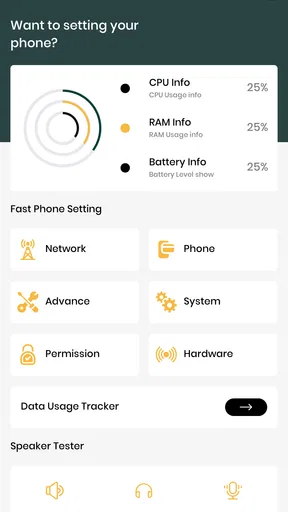
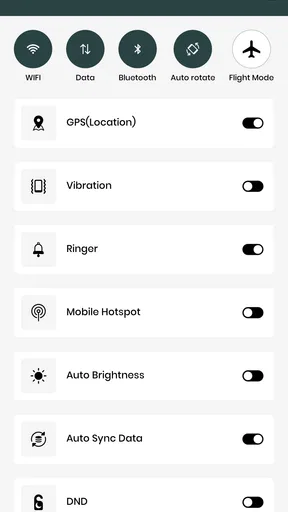
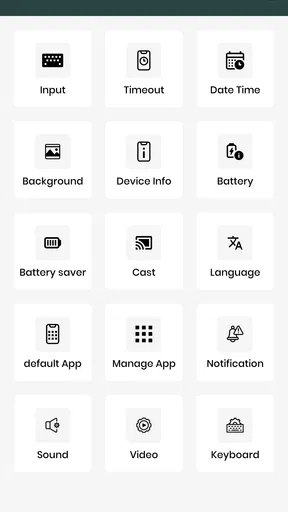
Our Review of Settings App
 Analysis by Appyee
I tried Settings App as a small personalization utility from BourtinaUp, and my first impression was that it aims to solve a very ordinary Android annoyance: reaching important device controls without digging through several menus. That sounds modest, but it can be useful when you change brightness, connectivity, sound, or other system options repeatedly throughout the day. The app is free, rated for Everyone, and its purpose is easy to understand from the moment you open it.
My overall experience was mixed in a fairly practical way. I like the idea of a dedicated shortcut to settings, especially on a phone where the standard route feels buried or inconsistent. At the same time, an app in this category has to justify its place beside Android’s built-in Settings app and quick settings panel. If it only adds another doorway to the same controls, the convenience needs to be immediate and reliable. That is the question I kept returning to while using it.
What the app is really useful for
Settings App belongs to the personalization category, although it is less about changing the appearance of a phone and more about changing how quickly I can reach its controls. The store summary presents it as quick access to settings, and that is the right way to understand it: this is a convenience layer rather than a replacement operating system or a deep customization suite.
The app is especially appealing if you often adjust your phone while moving between places. I can imagine using it before leaving home to check wireless connections, opening it at work to change sound behavior, and returning to it in the evening when I want to alter display or notification-related options. Those actions are already possible through Android, but a separate entry point can reduce the number of taps and the need to remember where each option lives.
A realistic example is a person who keeps a phone on silent during meetings but wants a different sound setup while commuting. Instead of searching through the full settings hierarchy, that person can use the shortcut-oriented approach to get closer to the relevant controls. The benefit is not a new capability; it is reducing the mental effort involved in finding an existing one.
That distinction matters. I would not install this expecting automatic device optimization, advanced themes, battery management, or a redesigned settings system. Nothing about the app’s stated role suggests that it performs those jobs. Its value depends on whether its route to settings feels faster and clearer than the tools already included with Android.
A simple idea with a narrow target
The current version is 4.0, and the app supports Android starting with version 5.0. That broad compatibility makes the concept relevant to people using older hardware as well as newer phones. Older devices can have manufacturer interfaces that place settings in less obvious locations, so a focused shortcut may feel more helpful there than on a recent phone with a polished quick settings panel.
Still, broad compatibility should not be confused with identical behavior on every device. Android manufacturers organize their menus differently, and the exact screen reached after choosing a setting can depend on the phone’s software. In practice, I would judge the app by how consistently it gets me to the intended area, not by expecting it to erase every difference between Samsung, Motorola, Xiaomi, Pixel, or other Android interfaces.
The developer is BourtinaUp, and the app has passed half a million installs with an average rating of 3.2 from roughly four thousand six hundred ratings. That combination tells me there is clear interest in the idea, but also that convenience alone has not made the experience universally satisfying. I would treat the rating as a reason to test the app personally rather than as either a strong endorsement or an automatic warning.
Where it fits beside Android’s own tools
Android already offers several ways to reach settings. The full Settings app is the most complete option, the quick settings shade is usually the fastest for common toggles, and home-screen shortcuts or manufacturer widgets may cover a few frequently used actions. Settings App has to compete with all of them, not just with other downloads in the personalization section.
Its strongest case is for someone who wants one recognizable starting point instead of remembering several gestures and menu paths. A dedicated icon can be easier to spot than a crowded quick settings shade, particularly for a family member who is not comfortable navigating Android. It may also be useful on a device where the quick settings layout is difficult to customize or where the most-used controls are not placed near the front.
The built-in alternatives are better when speed is the only goal. Pulling down the notification shade is normally quicker for basic toggles, while Android’s own Settings app is the safer choice for searching through less common options. I would choose this app only if its presentation or access pattern feels more convenient on my particular phone. It is not automatically better simply because it is separate.
Trust, controls, and moments that deserve attention
When I assess trust and control in a settings shortcut, I focus on the moment between choosing a destination and confirming a system change. I make a habit of checking the screen title and reading Android’s prompt before proceeding, especially when a control could affect connectivity or notifications. That small pause helps keep faster access from turning into a careless change, and it leads naturally to the situations where extra attention matters most.
What I can judge without guessing
Trust is important for a utility that sits close to device controls. My approach is to separate visible behavior from assumptions. Settings App is presented as a free utility for accessing settings, and it carries an Everyone content rating. Those facts make it approachable, but they do not by themselves prove anything about privacy, permissions, or background behavior.
That is why I would inspect the Android permission prompt and the app’s store privacy details before granting access beyond what seems necessary. I would not assume that a settings shortcut needs access to contacts, messages, location, microphone, storage, or other personal areas. If Android requests a permission that does not make sense for the action I am trying to perform, I would pause and decline it until I understood why it appeared.
This is also a good app for practicing a useful Android habit: review permissions after installation rather than accepting every prompt automatically. A small utility should make its user choices easy to understand. If the app opens a system settings page without asking for unrelated access, that is a more comfortable pattern than an app that requests broad control before showing its purpose.
I cannot turn a simple settings shortcut into a privacy guarantee. The responsible conclusion is narrower: use the app according to the permissions and disclosures you can actually see, and keep control in Android’s permission manager. If you later stop using it, removing unnecessary access and uninstalling it are sensible housekeeping steps.
Data-sensitive situations to think about
The most sensitive moments are not necessarily the ordinary taps inside the app. They are the points where the app asks for access, redirects me to a system page, or encourages a change that affects connectivity, notifications, sound, or display. I would pay close attention to the exact screen title and the action being requested so I do not change a broader setting than intended.
For example, when I want to adjust a connection-related option, I would confirm whether Android is showing a single toggle, a list of networks, or a larger network-management page. Those screens can have very different consequences. The same caution applies to notification access, accessibility-related controls, or any page that can affect other apps. A shortcut is convenient, but convenience should not replace reading the system screen before confirming a change.
I would also avoid granting access merely because the app’s name includes “Settings.” The name describes its purpose, not its authority. Android’s own confirmation dialogs remain the final source of truth about what a change will do. This is one of the app’s practical trade-offs: it can get me to a control faster, but I still need to understand the control once I arrive there.
Another useful habit is to test the app first with a low-risk action, such as opening a general settings area, before relying on it for something important. If the route is confusing, returns to the wrong screen, or behaves differently after a system update, I would fall back to Android’s own menus rather than experimenting during a time-sensitive situation.
Keeping control in the user’s hands
The best role for this app is as an optional doorway. I would keep the standard Android Settings app available, leave the quick settings shade configured for my most frequent toggles, and use Settings App only when its entry point is genuinely easier. That arrangement prevents the utility from becoming a single point of dependence.
I also recommend checking whether its shortcut remains useful after rearranging the home screen. If the icon becomes difficult to find, the supposed time saving disappears. A practical setup is to place it near other everyday tools, but not in a location where an accidental tap could repeatedly open system controls. The goal is deliberate access, not simply adding another icon.
People sharing a phone should be especially careful. A shortcut to settings can make device controls more accessible to anyone who can unlock the phone. That may be helpful for a household, but it also means the app should not be treated as a security barrier. Screen lock, user profiles where available, and Android’s normal account protections remain more important than the shortcut itself.
For parents or less technical users, I would introduce it slowly: show what the icon opens, demonstrate how to cancel a change, and explain that some system pages affect the whole phone. The Everyone rating makes the app broadly accessible, but an age rating does not replace guidance about device administration.
Small workflow improvements that make a difference
One non-obvious advantage of a focused settings launcher is that it can become part of a routine rather than something I search for only when a problem appears. I can use it as a pre-travel check: review the controls I personally care about, confirm the phone is configured for the environment, and then close it. This is more useful than randomly browsing settings because it ties the shortcut to a repeatable task.
A second insight is to compare it with the quick settings shade over several days, not just during the first launch. The shade may be faster for actions I perform constantly, while the app may be better for reaching areas that are not exposed as tiles. That comparison reveals whether the app fills a real gap or merely duplicates a gesture I already know.
A third is to use it as a discovery aid on an older or unfamiliar Android interface. When helping someone with a different phone, I often spend time locating the manufacturer’s version of a control. A consistent starting icon can reduce that initial confusion, although the destination may still look different from phone to phone. The shortcut helps with orientation; it does not standardize Android itself.
A fourth trade-off is maintenance. A separate settings utility can become less valuable after Android or a manufacturer changes its navigation. If a system update makes the built-in panel easier to use, I would reassess the app instead of keeping it installed out of habit. Conversely, if an update makes a frequently used control harder to reach, the shortcut may become more worthwhile again.
Who should use it, and who should skip it
I think Settings App is a reasonable experiment for users who frequently hunt through Android menus, people using older phones, and anyone helping a family member reach common controls more comfortably. It can also suit users who prefer a dedicated home-screen entry rather than relying on gestures or a customized notification shade.
I would skip it if the built-in quick settings panel already handles everything I change, or if I rarely alter system options. Installing another app for occasional access can create more clutter than convenience. I would also avoid making it my first choice if I need deep search, automation, device diagnostics, or a unified control center. Android’s own Settings app, manufacturer tools, or a specialized utility may be better for those jobs.
Users who are particularly cautious about permissions should examine every prompt and privacy disclosure before continuing. That is not a criticism unique to this app; it is the correct standard for any utility that interacts with device controls. If the visible access requested feels broader than the stated purpose, I would not proceed simply because the app is free.
My cautious verdict
Settings App is a narrow, understandable tool rather than an essential Android replacement. I appreciate the convenience of having a dedicated route into device settings, and I can see it helping people who find manufacturer menus confusing or who want a repeatable way to reach controls. Its free price removes the cost barrier, and its support for Android 5.0 and later makes it available to a wide range of phones.
My recommendation is conditional: install it only when you can identify a specific access problem it solves. Test the route with a harmless setting, review Android’s permission prompts, and compare its speed with the quick settings shade and the standard Settings app. If it consistently saves effort, it earns a place on the home screen. If it merely opens the same menus with an extra tap, uninstalling it is the more sensible choice.
The average rating of 3.2 suggests a useful but uneven experience, so I would keep expectations realistic. This is not a dramatic phone transformation. It is a small convenience layer whose success depends on your device, your habits, and how much you value a dedicated shortcut. Use it as an optional access point, not as a substitute for Android’s built-in controls or your own judgment about permissions.
For me, that makes it worth considering for a particular workflow, especially on a phone where settings are awkward to reach. I would not recommend it universally, but I would recommend a careful trial to the right person: someone who can name the repeated settings task they want to simplify and who is willing to keep the standard Android route available as a backup.
Privacy and Permissions
See what permissions an app requests and how it handles your data.
- Phone
- read phone status and identity
- Photos/Media/Files
- read the contents of your USB storage, modify or delete the contents of your USB storage
- Storage
- read the contents of your USB storage, modify or delete the contents of your USB storage
- Camera
- take pictures and videos
- Wi-Fi connection information
- view Wi-Fi connections
- Device ID & call information
- read phone status and identity
- Other
- view network connections, pair with Bluetooth devices, access Bluetooth settings, connect and disconnect from Wi-Fi, control flashlight, full network access, change your audio settings, run at startup, control vibration, prevent device from sleeping, modify system settings, Google Play license check
Verdict
Strengths of Settings App
- Centralizes many device options in one easy-to-find location.
- Search tools help users locate specific settings quickly.
- Offers quick access to connectivity, display, sound, and privacy controls.
- Supports accessibility adjustments for different user needs.
- System settings can be customized without installing extra tools.
Limitations of Settings App
- Some options vary significantly between Android versions and manufacturers.
- Advanced settings may be confusing for users unfamiliar with system controls.
- Changing certain options can affect battery life or device performance.
- Settings menus may contain promotional recommendations on some devices.
- A wrong configuration can disable features or disrupt app functionality.
Similar Picks in This Category
View All
Microsoft SwiftKey AI Keyboard
SwiftKey4.3

Wallpapers
Google LLC4.1

Zedge™ Wallpapers & Ringtones
Zedge4.7

Yandex Browser with Alice AI
Direct Cursus Computer Systems Trading LLC4.3

Ringtone Maker:create ringtone
Big Bang Inc.4.7

Fonts Keyboard
Fonts Keyboard3.9
Frequently Asked Questions
What is the Settings app used for?
The Settings app is the main control center for your device. It lets you manage connections, notifications, display preferences, sound, privacy permissions, accounts, storage, battery options, accessibility tools, and system updates. Although the exact menus can vary between Android and iOS devices, the app is essential for customizing how your phone or tablet works and for troubleshooting many common problems.
Is the Settings app safe to use and download?
The official Settings app that comes preinstalled on an Android or iOS device is a core system application and is generally safe to use. You normally should not download a separate copy from an unofficial website, because modified versions may contain malware or request unnecessary permissions. If you see a third-party app claiming to replace Settings, check its developer, reviews, permissions, and download source carefully before installing it.
Can I use Settings to improve privacy and security?
Yes. Settings provides several tools for protecting your personal information, including screen locks, biometric authentication, app permissions, location controls, microphone and camera access, account security, and software updates. Before granting permissions, review whether an app genuinely needs them. You can also disable access later, activate device-finding features, and configure backup or password options to reduce the impact of loss or unauthorized access.
Can changing options in Settings damage my device?
Most changes in Settings are reversible and will not physically damage your phone or tablet. However, changing network, account, accessibility, storage, developer, or reset-related options can affect how the device behaves or remove important data. It is best to read each warning carefully, avoid altering advanced options without understanding them, and create a backup before performing a factory reset or making major system changes.
Why can’t I find a particular option in the Settings app?
Settings menus differ according to the device manufacturer, operating system version, region, and installed updates, so an option may have a different name or location. Use the search field inside Settings and try related terms, such as “permissions,” “notifications,” or “battery.” If the option is still missing, check for system updates, consult your device manufacturer’s support page, or confirm whether the feature is supported on your model.
